Viewing and Sharing Visualizations in Kartorium
Once your scenes and project are configured, you can view the result in the Viewer. This guide will show you how to access the Viewer and manage users to share your visualizations.
Accessing the Viewer
Option 1: From the Dashboard
- Go to the Dashboard and select the Viewer for your project.
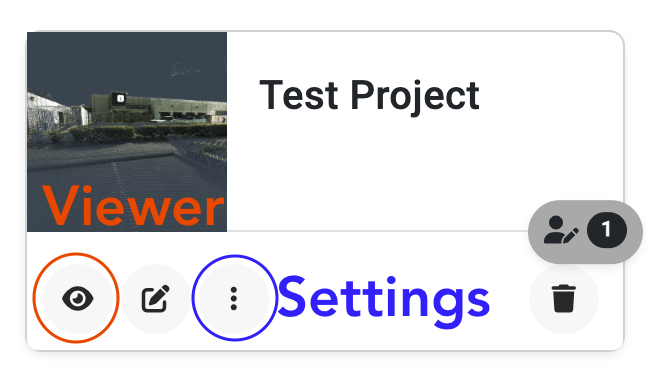
Option 2: From the Builder
- In the Builder, click the Preview button in the top right corner to open the Viewer.

Sharing Visualizations with Others
To share a view-only configuration of your visualization, each viewer must have administrator-provisioned Kartorium access.
Step 1: Request Access for Named Members
Contact support@kartorium.com with the approved member’s name, email address, organization, and required role. A Kartorium administrator provisions the named member and organization access.
Roles and Permissions
- Super User:
- Full access to all aspects of the application, including projects, models, users, and billing.
- Account Manager:
- Responsible for managing projects and models, with access to user permissions and billing settings.
- User Manager:
- Focused on managing user accounts and permissions across the organization but without access to billing.
- Supervisor:
- Oversight of the organization’s projects and models without access to user permissions or no billing access.
- Editor:
- Limited to managing projects, models, and assets without access to user management or billing.
- Read Only:
- Restricted to viewing projects and visualizations only, with no ability to edit or manage any assets or settings.
Note: These are organization-level permissions and determine the user’s overall access to the application.
Step 2: Assign Project-Level Permissions
- Go to the Dashboard.
- Locate the desired project card and click the Settings button.
- Adjust user permissions for that specific project.
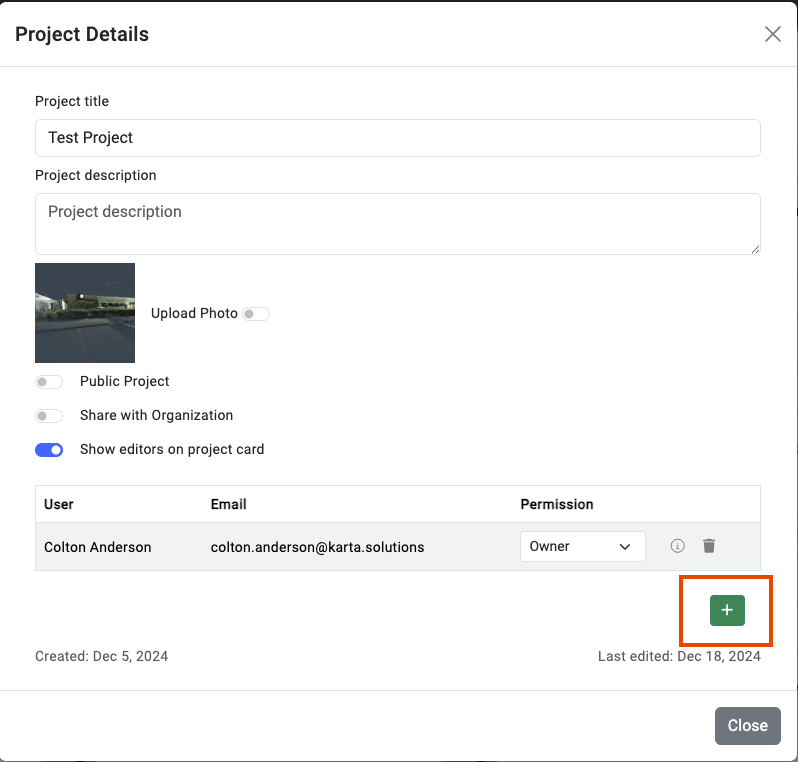
Example:
- To allow someone to view the results only:
- Add them to your organization as a Read Only user.
- Assign them Viewer permissions for the specific project.
Step 3: Share the Visualization
- The provisioned user receives invitation or first-login instructions at their approved email address.
- Provide them with the URL of the project you want them to access.
By following this process, you can share your visualizations securely while controlling user access at both the organization and project levels.